Somo AI: Photo to Art & Video
- 4.2
- Rating
- 10.00K
- Installs
- Free
- Price

 Analysis by App-foxy
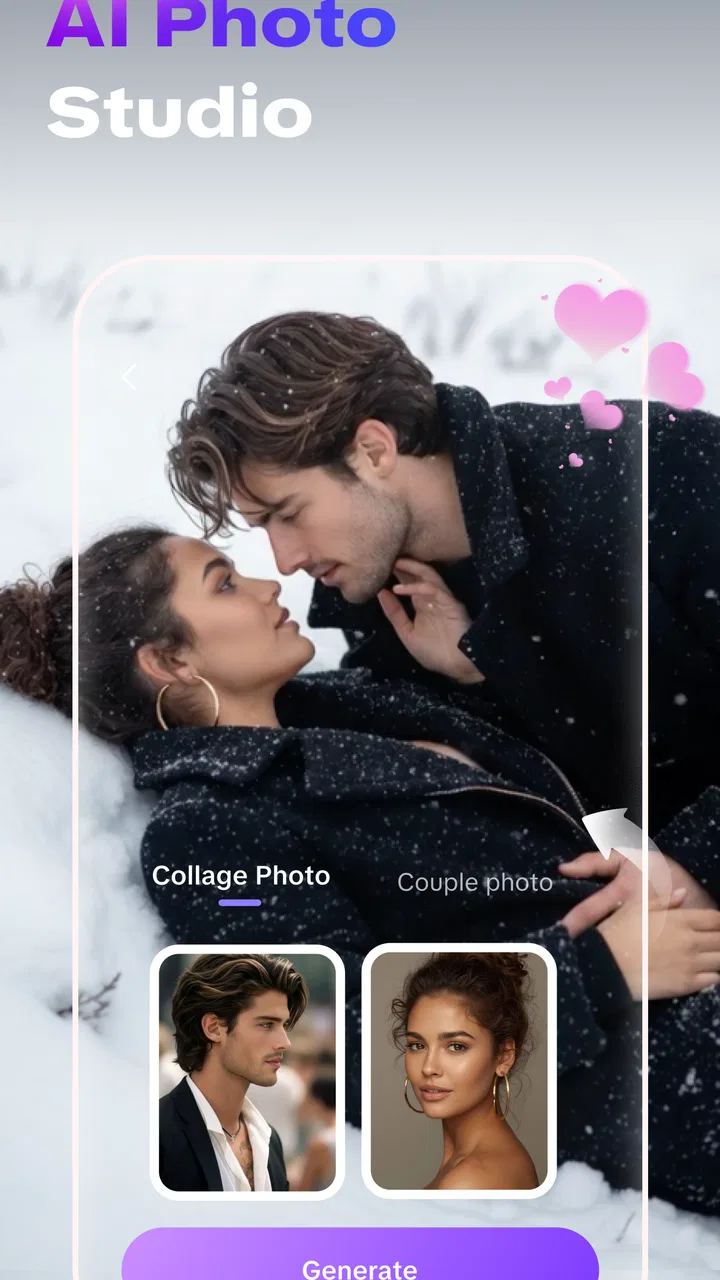
I tried Somo AI as a creative app for turning ordinary photos into stylized artwork and short visual creations. Its appeal is easy to understand: instead of opening a conventional drawing or editing program and building an effect manually, I could start with an image I already had and explore an AI-driven interpretation of it. That makes the app interesting for quick experiments, social posts, profile images, mood boards, and personal projects where the goal is an eye-catching result rather than precise retouching.
The app comes from Smart App Lab and sits in the Art & Design category. It is free to install, although optional purchases range from under a dollar to about fifty dollars per item. That combination is worth keeping in mind before you begin: the initial download is easy to try, but the most enthusiastic users may eventually encounter paid choices. I found the best way to approach it was as a visual playground first, not as a replacement for a full professional editor.
Where the first attempts can get stuck
The first point of friction is usually not the artistic idea but the starting image. AI art tools are sensitive to what they are given, and a photo that looks fine in a gallery can produce an awkward result after transformation. A dim face, a crowded background, several people standing close together, or a subject partly hidden by another object can all make the final interpretation less predictable. When an output feels wrong, I would not immediately blame the style or the app. I would first test the same idea with a clearer image.
You May Also Like

 Pandora - Music & Podcasts
Pandora’s Music Is Easy to Start, but Harder to Recover
Pandora’s strength is its low-effort path from a seed to a station. Its weak spot is how much confidence it asks you to place in connection, setup, and quiet recovery.

 AccuWeather: Weather Radar
AccuWeather Review: A Quick, Clear Forecast for Everyday Decisions
For everyday plans, the best forecast is the one you can understand quickly. AccuWeather makes rain timing, radar, and local conditions easy to act on, with a few trade-offs.

 Hill Climb Racing
Why Hill Climb Racing Still Turns Crashes Into One More Run
A tiny car, a bumpy hill and one more upgrade: Hill Climb Racing keeps resurfacing because its simple chaos makes every near-miss feel personal.

 AliExpress - Shopping App
AliExpress Makes Global Shopping Feel Personal, but Shoppers Bear the Risk
AliExpress turns a global marketplace into a pocket-sized discovery engine. Its reach is useful, its shopping loop compelling, and its trade-offs easy to miss.

 Lords Mobile: Kingdom Wars
Lords Mobile Is a Kingdom-Building Routine, Not a Quick Match
A case-by-case verdict on the building, battles, device demands, and social commitments that make Lords Mobile rewarding for some players and exhausting for others.

 PDF Scanner app - TapScanner
TapScanner Makes Paperwork Easier to Capture, Check, and Share
TapScanner makes scanning with a phone feel less like a rescue operation and more like a dependable step in getting work done. Its capture tools are useful, though not flawless.
More From Our News Desk
View All News


For a portrait, I had better results when the face was visible, reasonably well lit, and not too small in the frame. For an object, a simple background helped me judge whether the artistic treatment was working. This is a useful distinction: Somo AI is changing the visual language of a photo, not repairing every weakness in the original. A dramatic effect cannot reliably recover details that were never captured in the first place.
Another common sticking point is expecting one prompt or style choice to suit every kind of image. A look that feels attractive on a landscape may flatten the features of a face. An effect that works on a sharply outlined object may turn a busy street scene into visual noise. I recommend treating each conversion as a small test. Start with a photo that has one obvious subject, compare the result with the original, and only then move on to more complicated images.
The video side can also create a different expectation. Turning a still image into a moving or animated result is not the same as editing a conventional video clip. If you need exact control over cuts, timing, sound, captions, or individual frames, a traditional video editor remains the better tool. Somo AI is more appealing when you want an imaginative transformation without spending a long time constructing the sequence yourself.
This is also where the app’s audience becomes clearer. I think it suits people who enjoy trying visual ideas quickly, especially those who do not want to learn layers, masks, keyframes, and adjustment panels. It is less suitable for an illustrator who needs dependable line control or a designer working to strict brand rules. AI-generated variation is part of the attraction, but it is also the reason the result may not be repeatable enough for demanding production work.
Choosing a better starting photo
My practical routine is to keep three versions of a source image: the original, a cropped copy focused on the subject, and a slightly simplified version with distracting edges removed through ordinary phone editing. I use the crop when the main subject is getting lost, while the wider image is useful when the surrounding scene is important to the concept. This small preparation step often matters more than repeatedly changing the artistic treatment.
I also avoid judging an output only by its thumbnail. A tiny preview can make an image look polished while hiding distorted hands, strange facial details, or broken object edges. When I am deciding whether a result is genuinely usable, I inspect the important area at a larger size and ask whether the transformation still communicates the original subject. That check is especially important before using an image as a profile picture, invitation, poster, or gift.
Setup checks that save time
Somo AI is available for devices running Android 7.0 or later, which gives it a broad compatibility range. Even when a phone meets that requirement, I would still begin with a stable connection and enough free storage for the source images and exported work. AI processing can be more demanding than opening a normal photo, so an older device may feel slower or less comfortable during repeated experiments even if it can install the app.
Before starting a serious project, I make sure the original photo is safely stored outside the app. I do not treat an editing application as the only home for an irreplaceable picture. This habit is useful with any creative tool, but it is particularly sensible here because experimentation involves trying several versions. Keeping the source separate lets me crop, retry, or compare without worrying that the best original has been overwritten.
The free entry point makes it reasonable to test the workflow with a disposable image first. I would use a picture that is easy to replace and confirm how the app handles the stages from import to finished result before committing personal photographs. Since in-app purchases are available, I also pay attention to whether a selected option leads toward a purchase before spending time refining that version. Testing the complete path with a nonessential photo is the safest way to learn the app’s rhythm.
For families, the Everyone content rating makes the app broadly approachable, but that does not remove the need for sensible photo choices. I would be careful with private images, identifiable people, and pictures belonging to someone else. Creative convenience should not replace permission or good judgment, particularly when a transformed result is going to be shared publicly.
The current version is 1.2.0, and I would keep the installation reasonably current when possible. Updates can affect stability and the way an app behaves on different phones, so if a problem appears after a change, I first close and reopen the app, check the connection, and retry with a smaller or simpler image. Those are deliberately basic checks, but they separate a temporary hiccup from a problem caused by the source material.
A workflow I would use for a real project
Imagine I want to make a birthday image from a friend’s photograph. I would begin with a well-lit picture where the person is clearly separated from the background. I would save the original, create a tighter crop, and run a quick artistic test before deciding which version has the strongest expression. If the face changes too much, I would try another source image rather than endlessly forcing the same one through different treatments.
Once I find a convincing direction, I would keep the strongest result and compare it with the untouched photograph. That comparison prevents a common mistake: accepting an image simply because it is more dramatic. The best result is not always the most heavily transformed one. Sometimes a restrained interpretation preserves the person’s identity and makes the final picture more useful.
For a moving creation, I would begin with a single subject and a clear visual idea instead of a complicated collage. I would also decide in advance where the finished piece will be used. A casual message, a social post, and a printed design may need different proportions or levels of detail. If the app’s output does not fit the final destination, I would finish the adjustment in a conventional editor rather than expecting the AI stage to handle every presentation requirement.
This two-tool approach is one of my strongest recommendations. Somo AI can provide the imaginative transformation, while a familiar photo or video editor can handle cropping, text, sound, color correction, and final formatting. Using each tool for what it does best is more reliable than asking one app to be both an experimental art generator and a complete production suite.
Recovering when a result or process goes wrong
When a conversion fails, produces an empty-looking result, or seems stuck, I work through the problem in a fixed order. I retry the same action once, then test a different image. If the second image works, the original file or its complexity is the likely source of the trouble. If neither works, I restart the app and check the connection before changing anything else. This method avoids wasting time by changing several variables at once.
A useful recovery trick is to simplify the image without destroying the idea. I might crop out a cluttered edge, choose a brighter version, or remove extra people from the frame. I do not repeatedly submit a huge, detailed image while hoping the next attempt will magically understand it. A simpler test tells me whether the issue is visual complexity rather than the chosen artistic direction.
If the result is visually distorted but technically complete, I treat that as feedback about the input. Hands, small text, reflective surfaces, and overlapping objects are difficult subjects for many AI treatments. I would not use a generated version containing those defects for an important announcement or a professional presentation. Instead, I would select a photo where those vulnerable details are less central, or use a normal editor for that part of the job.
When the app appears slow, I avoid repeatedly tapping the same control. I give the current action time to finish, then restart only if it clearly has not progressed. Repeated submissions can make it harder to know which result belongs to which attempt. Keeping a simple note of the source image and the chosen treatment is surprisingly helpful when I am comparing several variations.
There is also a practical purchase-related recovery step. If I reach a paid option unexpectedly, I stop and decide whether the particular effect is essential. The free installation is enough to explore the basic idea of the app, but optional purchases mean I should not assume every attractive route is included at no cost. I prefer to confirm the value of the workflow with available options before paying for a result that may still need additional editing.
How to tell a creative mismatch from a technical problem
A technical problem usually prevents the process from completing or behaves inconsistently across simple tests. A creative mismatch, by contrast, completes but gives an image that does not suit the subject. That difference matters because the solution is different. Restarting may help a failed process, while a better crop or a different source photo is more useful when the output is simply unconvincing.
I use a small comparison set: one portrait, one object, and one uncomplicated outdoor scene. These are not meant as a formal benchmark; they are just easy reference points. If the app handles all three but struggles with one particular photograph, I focus on that file. If every test has the same issue, I look at the app state, the device, and the connection instead of endlessly adjusting the images.
Keeping the original files also makes recovery less stressful. I can return to the same source after changing one factor, which gives me a fair comparison. Without that discipline, it is easy to forget whether a better result came from the effect, the crop, the lighting, or simple chance.
When another tool is the better choice
I would choose Somo AI over a conventional editor when speed and surprise matter more than exact control. It is a good fit for someone who wants to see a familiar photo interpreted as artwork, or who needs a visually distinctive starting point for a post. The low barrier to experimentation is its main strength: I can explore an idea without first mastering a complicated editing workflow.
I would choose a traditional drawing app when I need to create from a blank canvas, control every stroke, or maintain precise lettering. I would choose a standard photo editor when the task is removing a blemish, correcting exposure, aligning a product image, or preserving a person’s appearance accurately. I would choose a full video editor when timing, audio, transitions, and repeatable motion are central to the project.
That does not make Somo AI weak; it defines its useful boundary. Its value is highest at the concept and transformation stage. It is less convincing as the only tool in a polished workflow. For a small business, for example, I might use it to brainstorm a campaign visual, then rebuild or refine the final asset elsewhere so that the logo, text, colors, and layout remain dependable.
People who dislike unpredictable AI results should also think carefully before installing it. The same variation that makes an experiment exciting can make it frustrating when the goal is consistency. Likewise, anyone who mainly wants filters, manual sliders, or straightforward collage templates may find a conventional editor faster and easier. Somo AI is not automatically the best answer just because the source image is a photo.
Privacy-minded users should apply their own standards before importing sensitive material. I would avoid using documents, confidential work, private medical images, or photographs of people who have not agreed to the experiment. Even when the creative result is intended only for personal use, choosing ordinary, non-sensitive images is a sensible way to reduce unnecessary risk.
My practical verdict after using it
Somo AI: Photo to Art & Video is a promising free-to-try option for casual AI art experiments and quick visual ideas. Smart App Lab has aimed it at the moment when a normal photograph feels too ordinary and the user wants a more expressive interpretation. I enjoyed it most when I approached each result as a draft or creative variation rather than a guaranteed final design.
The app has a 4.2 average from a small group of ratings and has passed ten thousand installs, which suggests that it has attracted an early audience without making it a proven replacement for established creative software. Its Everyone rating and Android 7.0 minimum make it approachable for many users, while the free price lowers the cost of trying it. The optional purchases are the main reason I would explore carefully before committing money to a particular workflow.
My strongest advice is to begin with a clean, well-composed photo, keep the original safe, and change one variable at a time. If an output fails, simplify the image before assuming the app is broken. If the result looks attractive but contains important distortions, treat it as inspiration rather than a finished asset. These habits turn a sometimes unpredictable process into a much more useful creative exercise.
I would recommend it to social-media users, hobbyists, families making playful images, and anyone curious about converting personal photos into art or motion. I would skip it as a primary tool for exact branding, detailed illustration, serious retouching, or tightly edited video. Its best role is the imaginative first step, followed by a conventional editor when precision matters.
After weighing the easy entry point against the variability of AI output and the possibility of paid choices, I think the app is worth trying if you enjoy experimentation. Just bring the right expectations: choose strong source images, inspect results carefully, and do not confuse an eye-catching transformation with a finished professional design. Used that way, it offers a friendly route into creative photo and video experiments without requiring a full editing background.
FAQs for Somo AI: Photo to Art & Video
01What is Somo AI: Photo to Art & Video?
Somo AI: Photo to Art & Video is a creative app that uses artificial intelligence to transform photos into stylized artwork and animated video content. After selecting an image, users can typically apply artistic effects, generate imaginative visual variations, and create shareable results for social media. The app is aimed at casual creators, rather than professional image editors who need detailed manual controls.
02How do I create artwork or videos with Somo AI?
To get started, choose a photo from your device or capture a new one, then select an available art style, effect, or video template. The app processes the image and generates the result automatically, although processing time can vary depending on the effect and internet connection. Before exporting, review the preview carefully because some styles may crop faces, alter details, or produce results that differ from the original photo.
03Is Somo AI: Photo to Art & Video free to use?
The app may be available to download for free, but some features, styles, exports, or processing options can require in-app purchases or a subscription. Availability of free credits and premium tools may also change with updates. Before confirming a trial or payment, check the pricing page, renewal terms, and cancellation instructions in your app store account to avoid unexpected recurring charges.
04Does Somo AI require an internet connection, and is my data safe?
AI image and video generation commonly requires an active internet connection because photos are processed on remote servers rather than entirely on the phone. You should review Somo AI’s privacy policy and permission requests before uploading personal images, especially photos containing children, identification documents, or other sensitive information. Also check whether uploaded content is retained, used for improvement, or deleted after processing.
05Can I share or use Somo AI creations commercially?
Somo AI can be useful for creating profile pictures, social posts, wallpapers, and short visual experiments, but commercial usage depends on the app’s current license and terms of service. Generated content may also include limitations related to copyrighted styles, recognizable people, trademarks, or third-party assets. If you plan to use an image or video for advertising, business branding, or monetized content, verify the ownership and usage rights first.
Pros
- Turns ordinary photos into creative AI artwork quickly.
- Offers multiple visual styles for experimenting with different looks.
- Can create animated videos from still images.
- Simple interface makes the main tools easy to find.
- Useful for social posts
- profile pictures
- and digital artwork.
Cons
- Some advanced styles and effects may require a subscription.
- AI results can vary and may include distorted facial details.
- Processing times can increase during busy periods.
- Export quality or resolution may be limited on free plans.
- Requires an internet connection for most AI generation features.

Somo AI: Photo to Art & Video
Gallery